
Prefabs
Anvil includes functionality to share prefabs across .blend files.
Prefab Libraries
An Anvil prefab is an object that has been marked as a Blender asset.
Prefabs are stored in prefab libraries.
Anvil will treat any .blend file containing prefabs as a prefab library.
The Blender workflow for creating assets is straightforward. Nevertheless, Anvil provides a convenience Library mode.
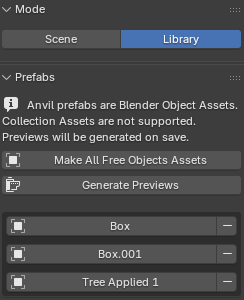
In the Level Design workspace, open the Anvil Prefabs side button and set the mode to Library.
Mark an object as an asset by pressing Space and choosing Mark as Asset.
The Make All Free Objects Assets will mark any object that is not a nested child of another object as an asset.
Prefabs (objects that have been marked as assets) appear in the list in the Prefabs panel.
On file save, previews will be generated for all prefabs. If desired, previews can be manually generated with the Generate Previews button.
Prefab Browser
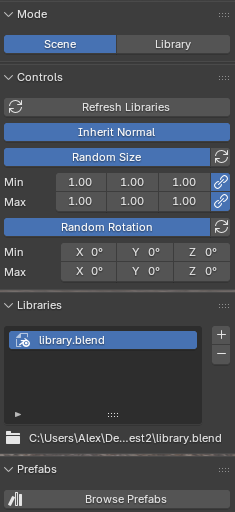
In the Level Design workspace, open the Anvil Prefabs side button and set the mode to Scene.
Press the + button to add a prefab library.

Press Browse Prefabs or Shift-3 to open the prefab browser.
If you prefer, the prefab browser can be docked into Blender like any other editor area.

Selecting a prefab will enter prefab placement mode (based on point select mode).

Left Mouse selects the current point.
Esc exits without making changes.
Ctrl fixes the current selection plane.


Point selection respects Blender's snapping mode; when snapping is disabled, point selection will not snap.
Placement Options


The Controls panel in Scene mode affects the next prefab placement and the live preview while placement mode is open.
Inherit Normal is on by default. When enabled, the prefab follows the surface normal under the cursor. Turn it off to keep prefabs world-up. Press W while placing to toggle the same setting.

Enable Random Size to give each placement a sampled scale between the Min and Max values. With the link icons enabled, Anvil uses one uniform scale value. Unlink a row to set X, Y, and Z ranges independently. The reset button beside Random Size disables random size and returns the range to 1, 1, 1.
Enable Random Rotation to give each placement a sampled Euler rotation between its Min and Max values. This is useful for set dressing where repeated prefabs should not all face exactly the same way. The reset button beside Random Rotation disables random rotation and returns the range to zero.
While placing, press R to reroll the current random size and rotation preview. Changing the random controls while placement mode is open also updates the preview.
After placing a prefab, Weld W will enter prefab placement mode for the same prefab again. Repeating a prefab this way uses the current Controls settings, so random size and rotation can create a fresh variation each time.
Use Shift / Q / E while placing to rotate the prefab in 90 degree increments, or hold Shift and drag to rotate freely.
Post Create Options
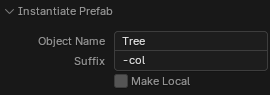
Object Name. Does what you’d imagine!
Suffix. Append a suffix to the object name. Godot for example generates colliders for -col suffixes.
Make Local. Removes all links to the library file for this prefab, allowing you to edit its material and geometry.
Lifecycle
Prefabs inherit features from Blender’s asset pipeline:
- Instantiated prefabs will be updated along with the original (press the
Refresh Librariesbutton)
In addition:
- Prefabs cannot be edited by Anvil features (e.g. materials cannot be overriden by Anvil)