Geometry Tools
Geometry tools heavily utilise the point selection workflow.

Left Mouse selects the current point.
Esc exits without making changes.
Ctrl fixes the current selection plane.


Point selection respects Blender's snapping mode; when snapping is disabled, point selection will not snap.
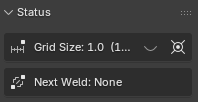
Builder (Box, Cylinder, Prism, and Stairs) and cut (Cube, Cylinder, Prism, Clip) buttons are beside the Status panel.
Builders work in object and edit mode. Cuts work only in edit mode. The active tool and its post-operation options follow the viewport under the cursor.
Weld
Weld is a context aware action that follows a geometry tool invocation. In applicable cases, a Weld will be available. Press W to Weld.
The next Weld can be seen in the Anvil status panel.
Box Builder
Press B to build a box.
Click once to set the start point; click a second time to define the area; click a third time to extrude and instantiate the box. Holding the mouse button is not required.
Box Builder will use the last selected texture (either a selected face, or an image selected in the image browser).
Box Builder works in object and edit mode.

A 0 length extrusion box becomes a plane.

Defining the initial area as a line will lead to a vertical plane.

Holding Shift during the first click will modify the workflow. Click once to set a start point; click a second time to define an initial line; click a second time to define the area; click a third time to extrude and instantiate the box.
This allows non-grid aligned boxes.
Post Create Options
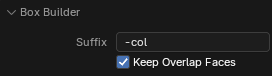
-
Suffix. Appends text to generated object names; for example, Godot uses
-colto identify collision meshes. -
Keep Overlap Faces. Keeps faces that overlap existing geometry. Disable it to remove inward-facing overlaps; removing adjacent faces also removes their shared edge.
Welds
Invert, flips the faces created by the builder; it’s useful for interiors.
Cylinder Builder


Use the cylinder + button to build a cylinder or elliptical prism.
Click to set the centre, click to set both radii, then click to set the depth.
A flat cylinder will create a circle.

Use Mouse Wheel while drawing to change the side count.
Post Create Options
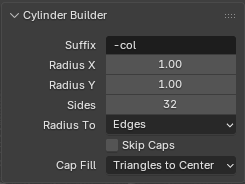
- Suffix. Appends text to generated object names.
- Radius X. Sets the radius along the first profile axis.
- Radius Y. Sets the radius along the perpendicular profile axis.
- Sides. Sets the number of faces around the cylinder.
- Radius To. Places either the polygon edges or side-face centres on the drawn radii.
- Skip Caps. Creates only the cylinder’s side faces.
- Cap Fill. Fills each cap with a single ngon or triangles meeting at a centre vertex.
Welds
Invert, flips the faces created by the builder; it’s useful for interiors.
Prism Builder
Use the prism + button, or assign Unbound, to build a freeform prism.
Click to draw a non-crossing profile. Connect the last point to the first to close it, then click to set the depth. Concave profiles are supported.

A flat prism will create the prism without depth.
Post Create Options
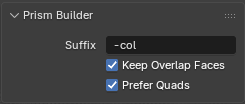
- Suffix. Appends text to generated object names.
- Keep Overlap Faces. Keeps prism faces that overlap existing geometry.
- Prefer Quads. Joins cap triangles into valid quads where possible.
Welds
Invert, flips the faces created by the builder; it’s useful for interiors.
Stair Builder
Use the stair + button, or assign Unbound, to fill a drawn box with stairs.
Click once to set the start point; click a second time to define the area; click a third time to extrude and instantiate the box.


Press Q or E while drawing to rotate the uphill direction.
Post Create Options
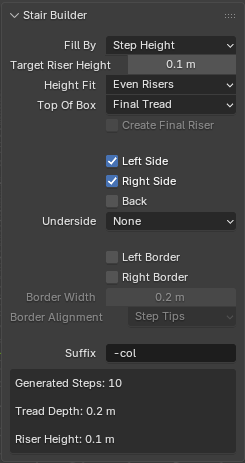
- Fill By. Sizes the stairs by an explicit step count or a target riser height.
- Steps. Sets the number of steps when filling by Step Count.
- Target Riser Height. Sets the preferred riser height when filling by Step Height.
- Height Fit. Makes every riser even, or puts the smaller remainder in the first riser.
- Top Of Box. Builds a final tread or treats the box top as the destination floor.
- Create Final Riser. Adds the last vertical face when using Destination Floor.
- Left Side. Creates the outer left side face.
- Right Side. Creates the outer right side face.
- Back. Closes the rear below the final tread or riser.
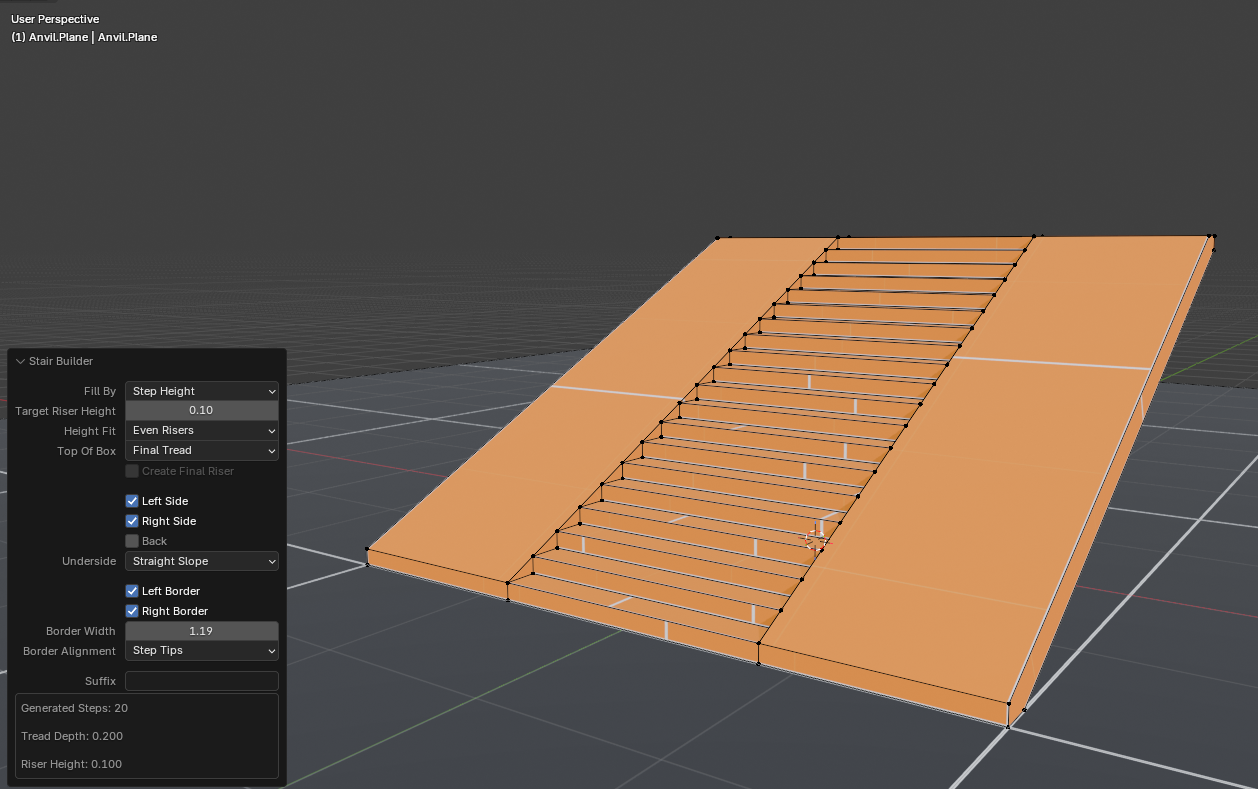
- Underside. Leaves the bottom open, fills it to the base, or creates a straight slope.
- Left Border. Replaces the left step edge with a flush sloping strip.
- Right Border. Replaces the right step edge with a flush sloping strip.
- Border Width. Sets the width of enabled borders.
- Border Alignment. Aligns borders to tread tips or to the bottoms of risers.
- Suffix. Appends text to generated object names.
The readout reports the generated step count, tread depth, and riser height.
Cube Cut
Press C to perform a Cube Cut. Cube Cut works only in edit mode.
Hold Alt to show predicted mesh intersections.
A cube cut eliminates all geometry inside the cube and adds edges to connected geometry to avoid T-Junctions. It is intended for cutting holes in meshes.
Click once to set the start point; click a second time to define the area; click a third time to extrude and remove everything inside the box (holding Shift will have the same effect as in Box Builder). Holding the mouse button is not required.

Like Box Builder, Cube Cuts can be flat planes.


Cube Cut works in orthographic mode. In orthographic mode, Cube Cut has infinite depth.

If there is an active selection of faces, Cube Cut will only apply to the selection. Use face selection to avoid unnecessary cuts in orthographic mode.
Post Create Options
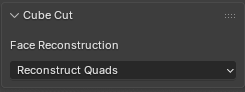
- Face Reconstruction. Rebuilds cut surfaces as quads where possible, or as ngons with the fewest required connector edges.
Welds
If a cube cut results in 2 edge loops, Weld W will bridge the loops, creating a corridor.


If a cube cut results in a single edge loop, Weld W will extrude and cap into the space defined by the cut, creating an alcove.
Cylinder Cut
Use the cylinder - button to cut a cylinder or elliptical prism from the active mesh.

Like Cylinder Builder, Cylinder Cuts can be flat.

If there is an active selection of faces, Cube Cut will only apply to the selection.
Post Create Options
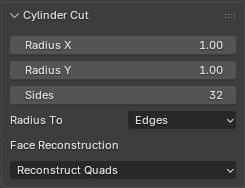
- Radius X. Sets the radius along the first profile axis.
- Radius Y. Sets the radius along the perpendicular profile axis.
- Sides. Sets the number of faces around the cylinder.
- Radius To. Places either the polygon edges or side-face centres on the drawn radii.
- Face Reconstruction. Rebuilds cut surfaces as quads where possible, or as ngons with the fewest required connector edges.
Welds

If a cylinder cut results in 2 edge loops, Weld W will bridge the loops, creating a corridor.

If a cylinder cut results in a single edge loop, Weld W will extrude and cap into the space defined by the cut, creating an alcove.
Prism Cut
Use the prism - button to cut a freeform prism from the active mesh.

Like Prism Builder, Prism Cuts can be flat.

If there is an active selection of faces, Cube Cut will only apply to the selection.
Post Create Options
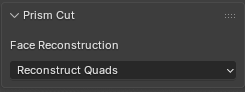
- Face Reconstruction. Rebuilds cut surfaces as quads where possible, or as ngons with the fewest required connector edges.
Welds
If a prism cut results in 2 edge loops, Weld W will bridge the loops, creating a corridor.

If a prism cut results in a single edge loop, Weld W will extrude and cap into the space defined by the cut, creating an alcove.

Clip
Use the - button to bisect the active mesh with an infinite plane.
Click to set the first point, then click again to set the second point and apply the Clip. The drawn line and grid normal define the plane.

Press Q or E to cycle between bisecting only, removing above and removing below. Removal modes mark the discarded side in red.

If there is an active selection of faces, Cube Cut will only apply to the selection.
Post Create Options
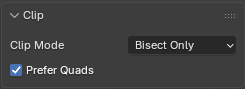
- Clip Mode. Keeps both sides of the clipping plane or removes the side above or below the drawn line.
- Prefer Quads. Rebuilds resulting ngons as quads and triangles.
Welds
If a clip leaves edge loops, Weld W will turn them into faces (respecting the Prefer Quads option).