
Exporting
Anvil does not add any new types of data into a scene that Blender cannot already handle. That being said, to export your level you should use the Blender built-in exporters, including .fbx and .gltf found at File -> Export.
If you are writing a custom script to match exported materials to existing materials in your game engine, you may find Advanced - Material Mapping useful.
glTF Export Helpers
Anvil provides additional export properties for convenience.
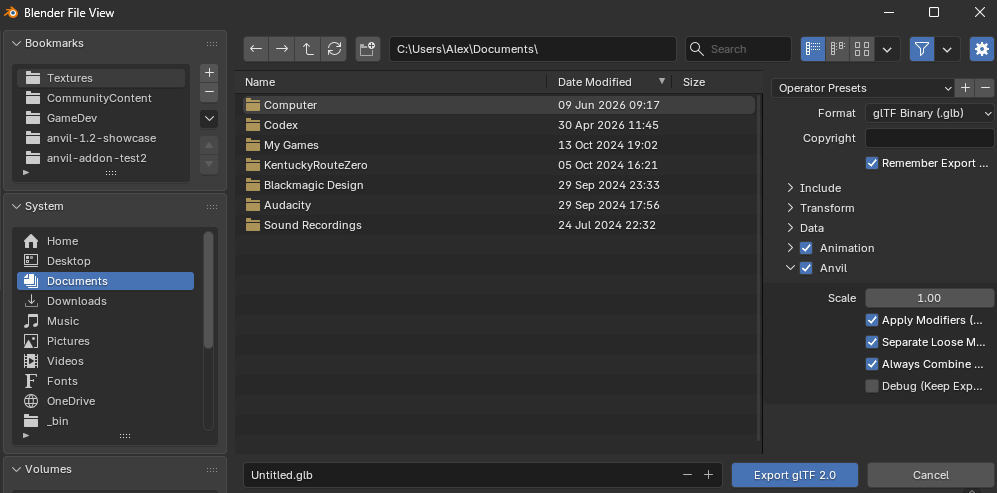
Scale adjusts the total scale of the scene.
Apply Modifiers will apply modifiers on export; the Anvil version is more robust than the Blender built in version.
Separate Loose Meshes will split unconnected meshes inside a single object into multiple objects where possible (this feature won’t split unconnected meshes in prefabs).
Anvil generally manages materials so that a single image maps to a single material. This isn’t possible when using prefabs; an imported prefab will have a separate material than a face owned by the main scene that has the same image. On export, Anvil will combine these materials if the values (roughness, metallic etc) are the same. Always Combine Materials will ignore the materials and always export one material for each image. It prefers values sourced from the main scene.
Debug will leave side effects of the import available to view in the .blend file. Generally to be avoided!
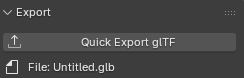
The Anvil Export panel can be found in the Level Design workspace. It will allow you to quickly repeat an export without going through the main export menu again.